Saturday, January 15, 2011

PE2_iMovie

The Lynda.com training videos were great, but learning to use iMovie is certainly going to be a hands on experience for me.  After watching, and watching, and watching some more, I finally decided to sit down and play with iMovie.  I decided the easiest, and most practical use for me at this point, would be creating a photo slideshow with some still images.  I chose this particular type of movie because I am toying with the idea of having my students create digital autobiographies at the beginning of the next semester, and this is also something I have wanted to learn to enhance my photography business.  

So, the first step in this process was to open a new project in iMovie.


After opening a new project, I thought it would make sense to import the photos that I was planning to use for the movie.  Because I had not obtained approval from any of my clients to use their images for this exercise, I chose to use my family portraits to create my movie.  The family portraits that I used are from a session that we had done with Carrie Small, a local photographer here in Fayetteville. 

Adding pictures to iMovie was pretty easy, but the pictures had to be added to iPhoto before they could be imported to iMovie  I was a little unsure of how to add pictures to iPhoto, so I consulted my trusty videos from Lynda.com to get some help with that.


Once the pictures were in iMovie the fun began!


After choosing the photos I wanted to work with I added them to the project area and began to edit them by cropping, adding transitions, and working with the Ken Burns effect. This was one of the more difficult parts of creating the movie.  I couldn't seem to get all of my pictures to transition the way I wanted them to.


After adding the transitions, and the theme I wanted to use, I decided a little music would be appropriate.    So, I added some royalty free music from http://incompetech.com/m/c/royalty-free/ , a website managed by Kevin Macleod.


I didn't bother with any of the advanced editing techniques in this video, because I just wanted to see if I could handle creating a basic video.  And I did!  Its not the greatest video, but for a first time I'm ok with it.  

While working in iMovie, I found that creating this type of movie is not too difficult.  It does take some time, and if you want to create something great you have to really work at it. Its also a good idea to know  the tools, and the keyboard short cuts.  

Thanks again for reading my blog and following me on this journey! Happy Blogging all!


PE1_iMovie

I made it! 2 hours and 22 minutes later, I am now iMovie certified!  So, what does that mean?  It means that I have completed the iMovie training at Lynda.com.  Do, I know how to create and edit awesome videos, absolutely not! I have simply completed the training!


The training movies on Lynda.com were very informative.  They were very detailed and covered a breadth of information.  They were so detailed and packed with information that I am going to have to refer back to them as I work my way through using iMovie.  Watching all of the videos at one time was nothing short of overwhelming.  I tried to take notes as I followed along, but without the videos as a reference, my notes made absolutely no sense to me.  The more I watched the videos, the more confused I became.  After watching the whole 2 hours and 22 minutes of training videos, I finally decided to go back and chose 3 things I would like to master in iMovie, and those are the videos I studied very carefully.

While watching the videos I was amazed to see that iMovie offered so many advanced options.  At first glance, iMovie appeared to be a very basic software application.  But, I was surprised to find that it offered so much more.  iMovie offers basic video editing techniques, and a place to store and manage home videos.  For users who are looking for more of a challenge, iMovie also delivers.  Users who are really to study iMovie in depth will find that it offers tools for video stabilization, working with audio, adding transitions, precision editing, and creating movies with photos.  These are just a few of the things that can done in iMovie.

Learning to use iMovie is going to be a challenge for me, but as always, I am excited about learning something new! I look forward to working with iMovie and learning more about video editing!

Thanks for reading, and Happy Blogging everyone!

Monday, January 10, 2011

BP2_Schoology

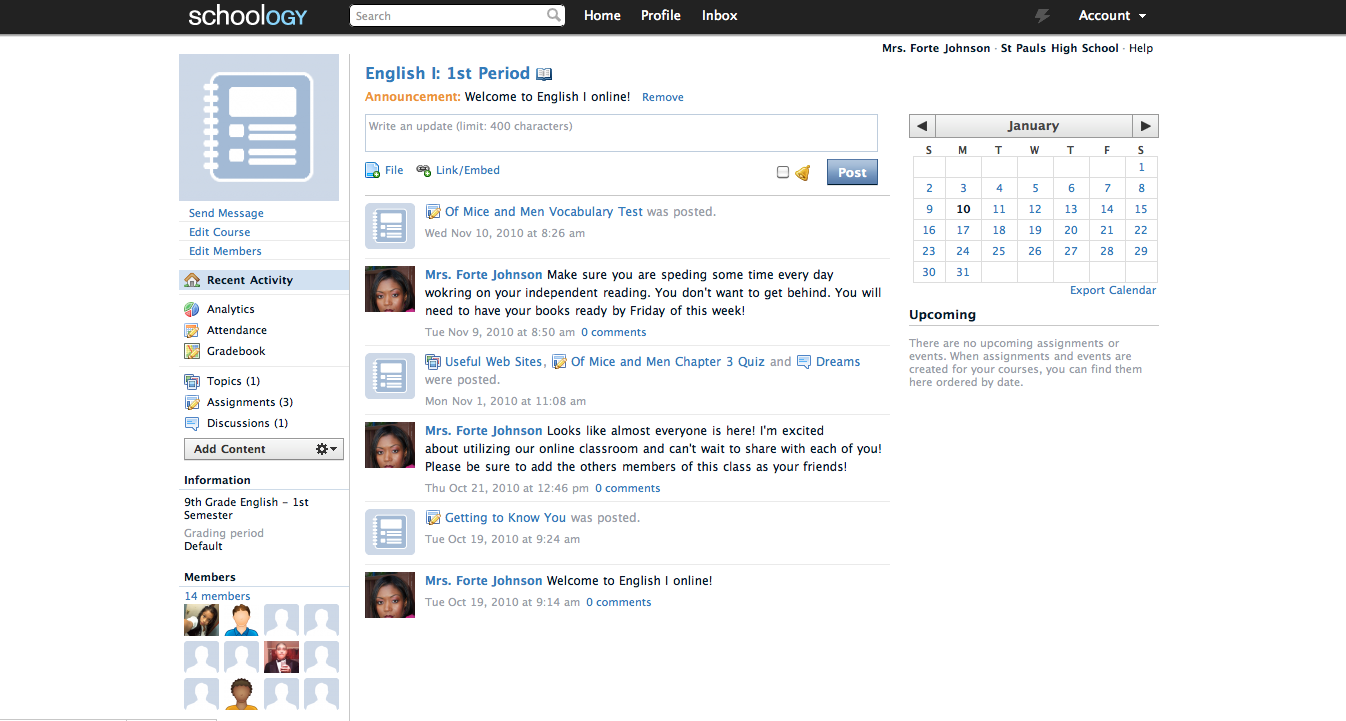
Web 2.0 tools for teachers...there are so many! I am amazed at the variety of free Web 2.0 tools available for teachers and students.  I am excited about learning to use and introducing some of the tools to my students.  Schoology is one of these tools.  It is an LMS (Learning Management System) that allows teachers to create an online classroom with the look and feel of a social network.  It is similar to Moodle, and Blackboard, in that it provides teachers with a website where they can post assignments and course material for their students.  It also allows students, and teachers to collaborate and discuss information in an easy to use format.  Because students can access the portal from home, it also benefits students that may be absent from class for extended periods of time.  Within the online classroom teachers can create, edit and share academic material such as tests, quizzes, assignments, homework, discussion boards, projects and grades that can be completed within the portal or printed and brought in to class.  The site also hosts a digital drop box where students can turn in their assignments, and a message feature which allows students to communicate with their classmates and their teachers.


 When I first discovered Schoology I knew it would be a great tool to use with my students.  It offered me the look and feel of an online classroom, and gave my students the "facebook" feel.  My students were excited o set up their profiles and upload their pictures.  They also liked the possibility of having their syllabus, course materials, and access to their classmates in one convenient location.


Schoology also provides teachers with an online grade book where teachers can track and record student grades and attendance.  Parents can also access the digital classroom with a special access code.  With this access code they can check the progress, grades, and online activity of their children.  


I am planning to use Schoology with my test class while completing my CBR project.  I realize that technology is an important aspect in the lives of my students.  Research says that incorporating technology offers great benefits to students.  I would like to see if this is the case.  Schoology with help me to extend my classroom to the home environments of my students, and it will also be great for my students that are more self directed.  Maintaining this digital classroom environment will be a major part of my CBR project. Through Schoology I will be collecting evidence related to student involvement, engagement, productivity, learning, peer to peer collaboration, and parent/teacher collaboration.


Sunday, January 9, 2011

BP3_iGoogleScreenShots

Back in August when I began the EMDT program I knew many new challenges awaited me.  I also anticipated another year of school when I would be busy writing a bunch of useless research papers! Boy was I wrong.  My first four months at Full Sail have been nothing like what I had envisioned they would be.  These first four classes have been filled with learning.  The assignments have been hands on and very practical! I have been so excited and relieved to not have to write another boring research paper! Many of the tools we have been using have been very easy to use and great for streamlining the workload.  One of those tools is iGoogle.

Prior to beginning my studies at FSO I had no idea what an iGoogle page was.  I just knew it was going to be another rudimentary task I'd have to complete! But again, I was wrong.  iGoogle is awesome! It offers tools for time management, organizing, document sharing, email, and many things.

iGoogle is set up so that different tabs can be created and different information can be organized on each tab.  On my home screen I have a direct link to Facebook, Twitter, a To Do List, the local weather in my area, and a few other things I'd like to know when I log on to the internet.


I have also set up three other tabs.  Each these tabs is specific to the EMDT program and the ETC class.


At first glance iGoogle appeared to be time consuming and cumbersome, but as I began to explore it, I am finding that I like it quite a bit.  I really think it helps to have all of the links I will be using in one place.  That is certainly a time saver!  I don't know about anyone else, but I sure can use a great tool that will help me to be more organized and more conscious of my time!

Saturday, January 8, 2011

BP1_Welcome to My Blog


Wow! I can't believe it has already been three months, and I am now moving into Month 4 of the EMDT program.  So far this experience has proved to be time consuming, challenging, fun, and full of learning. Having said that, here I am beginning yet another journey...BLOGGING! I must admit, I am extremely nervous about blogging, and I worry that I will not have anything to say that people will want to listen to.   Although I am nervous, I have been toying with the idea of blogging for some time, and I am a self-proclaimed blog stalker!  Deep down inside I am glad that blogging is a requirement for this class, because if it weren't I would completely skip this opportunity to share with my peers, and the rest of the world.  Maybe blogging will be something I find enjoyable, maybe it will be a chore! Either way, over the next month I hope to share with you my journey and discovery of Web 2.0 tools that I would like to use while completing this program, and tools I find that will be beneficial to my students and other educators like myself.  Happy Blogging Everyone!